

Creating a Test Suite
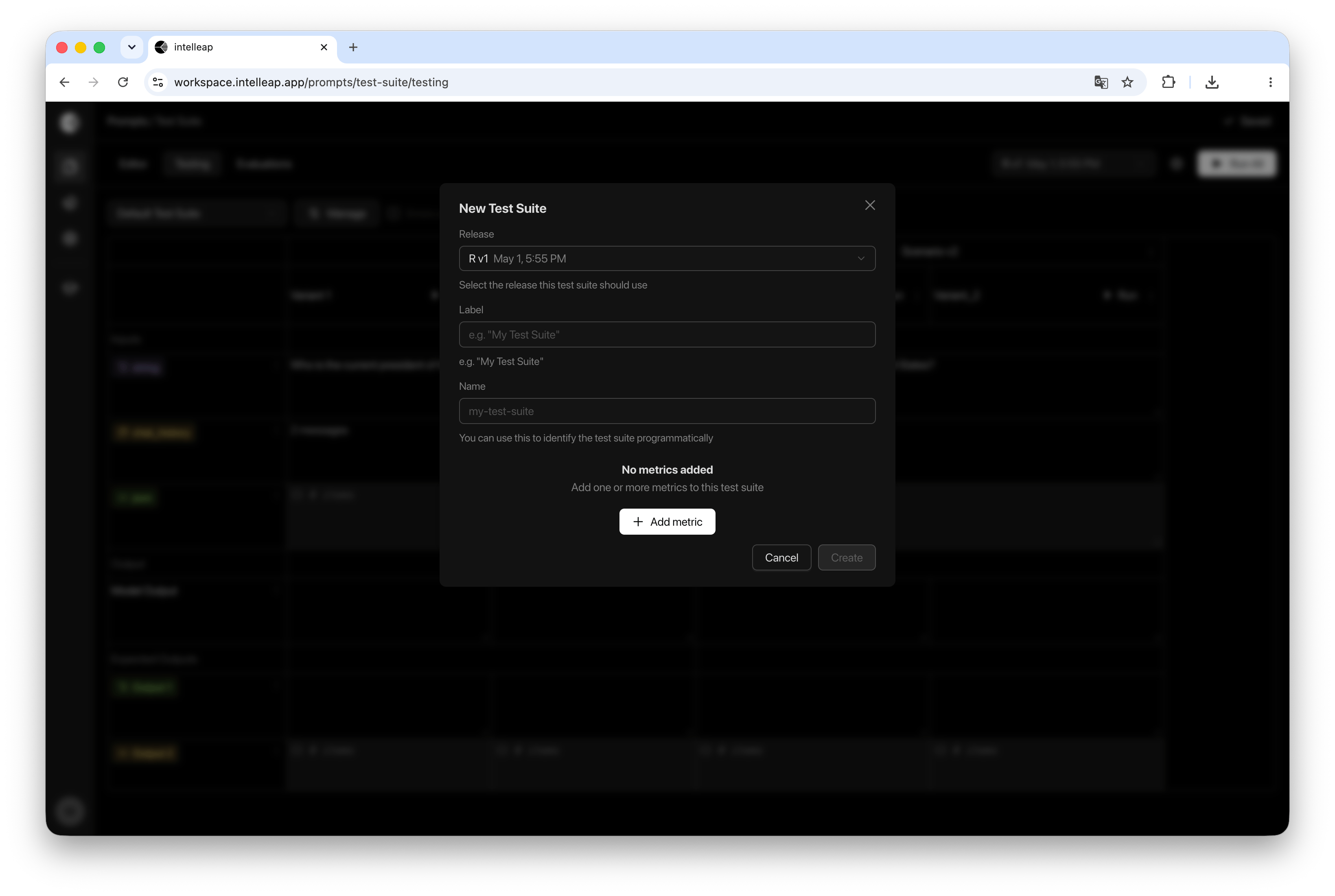
To create a new Test Suite, open the Test Suite selector and choose Create Test Suite. When creating a Test Suite, configure:- Release
- Label
- Name
- Metrics
- Expected Outputs (optional)
Test Suite Structure
Each Test Suite contains:Test Cases
Scenario groups that define the testing dataset.
Inputs
Variable values used during test execution.
Expected Outputs
Desired results used by metrics and reviewers.
Metrics
Automated checks attached to the Test Suite.
Test Cases
Test Cases define the scenario groups used within a Test Suite. In the Testing table, each Test Case appears as a scenario group containing one or more prompt variants. Each Test Case represents a set of input values that will be executed across all prompt variants available in the selected release. This allows the same inputs to be evaluated across different prompt configurations.Inputs
Inputs define the variable values used during test execution. Input values are displayed in the Inputs section of the testing table. Supported input types match the variables defined in the prompt:- String
- Chat History
- JSON
Expected Outputs
Expected Outputs define the desired results for a test case. Expected outputs are displayed in a dedicated section of the testing table below model outputs. A Test Suite can contain multiple expected outputs. This allows different aspects of a response to be evaluated independently.Metrics
Metrics define how execution results are evaluated. Metrics are attached to a Test Suite through Manage → Metrics. All available metrics are created and managed in the Metrics section. Once attached, a metric becomes available for evaluating test results within the current Test Suite. Some metrics may require additional configuration before use. For example, a word count metric may require a maximum word limit to be specified.Editing a Test Suite
The Settings action allows users to manage the currently selected Test Suite. Available actions include:- Updating the Label
- Updating the Name
- Managing Expected Outputs
- Deleting the Test Suite
Using Multiple Test Suites
Multiple Test Suites can be created for the same release. This makes it possible to:- Test different datasets
- Use different expected outputs
- Compare testing strategies
- Apply different metric configurations
Use separate Test Suites when datasets, expected outputs, or metric configurations represent different evaluation goals.