

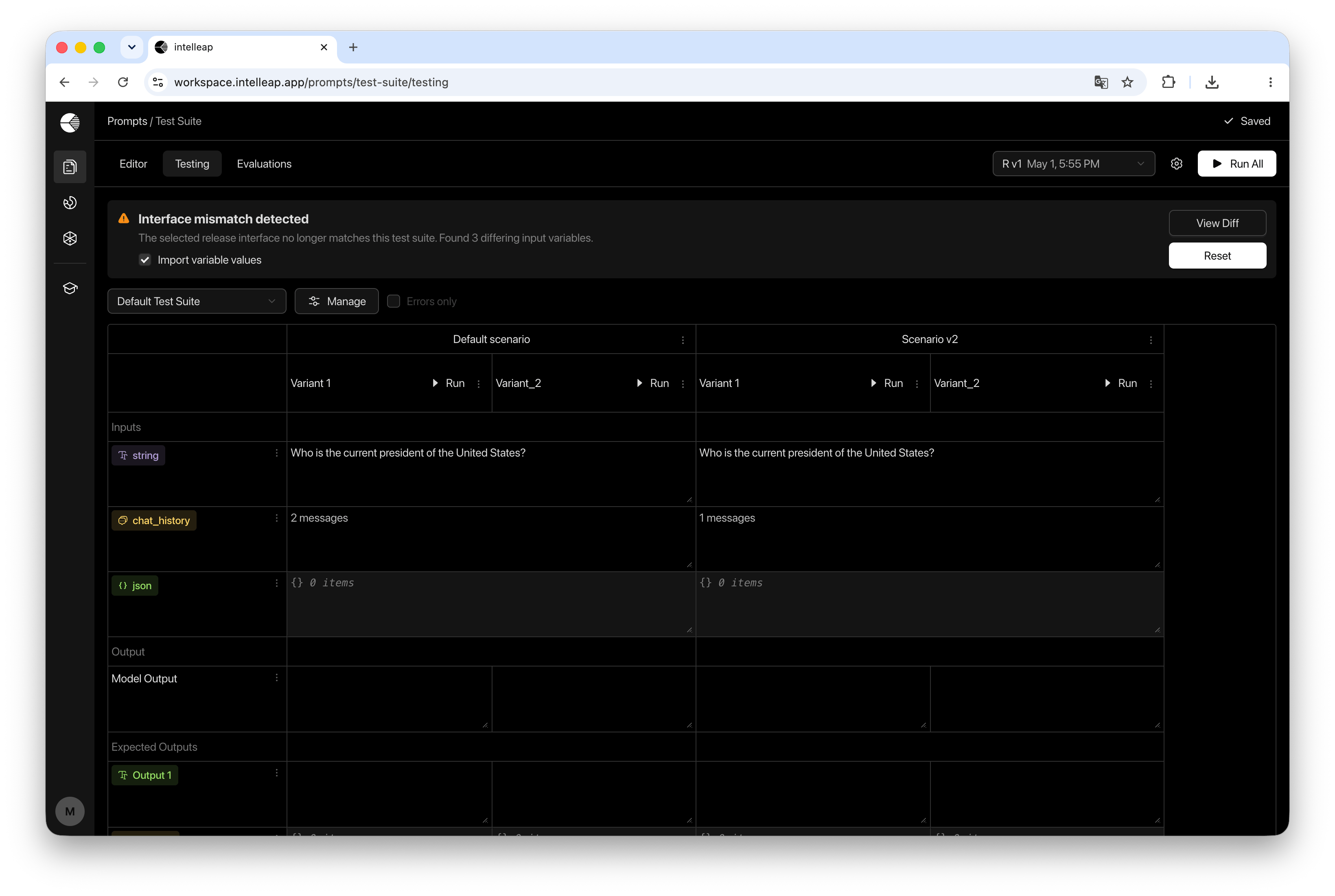
When a Mismatch Occurs
A mismatch occurs when the structure of the selected release no longer matches the structure used by the current Test Suite. This can happen after publishing changes from the Editor, such as:- Adding variables
- Removing variables
- Changing variable types
- Updating scenario structure
Interface Mismatch Notification
When Testing detects differences between the selected release and the current Test Suite, an Interface Mismatch notification banner is displayed at the top of the page. The notification shows the number of detected differences and provides actions for reviewing and applying changes. Available actions include:- View Diff
- Reset
Reviewing Differences
Select View Diff to open the comparison dialog. The dialog compares the interface defined by the selected release with the interface currently stored in the Test Suite.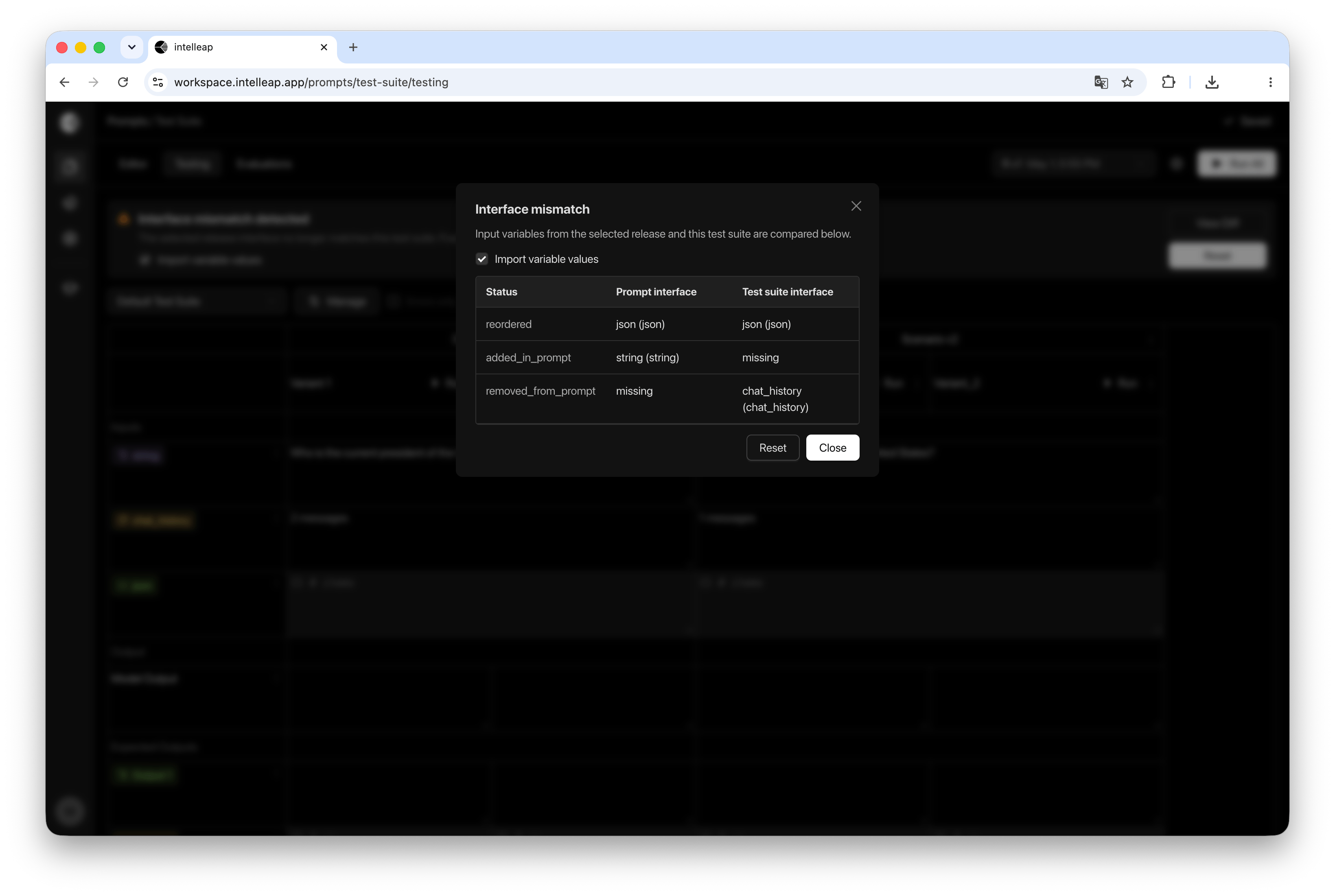
- Added variables
- Removed variables
- Variable types
- Missing entries
- Interface differences between the release and the Test Suite
Synchronizing a Test Suite
To apply changes from the selected release, click Reset. Before synchronizing, choose whether variable values should also be imported from the release.- Import Variable Values Enabled
- Import Variable Values Disabled
When Import Variable Values is enabled, Testing updates:
- Variable definitions
- Variable types
- Variable values
- Scenario configuration
When to Delay Synchronization
Synchronization can be postponed if testing must continue using the current Test Suite configuration. In this case, the Test Suite continues operating without applying changes from the release. This can be useful when completing validation on an existing test dataset before moving to a newer prompt version.Best Practices
It is recommended to review and synchronize mismatches after publishing significant changes from the Editor. Keeping Test Suites synchronized helps:- Use the latest prompt configuration
- Maintain consistency between Editor and Testing
- Avoid issues caused by missing variables
- Produce reliable and reproducible test results