

Creating a JSON Schema Metric
To create a new metric:1
Open Metrics
Open the Metrics section.
2
Create a metric
Click New Metric.
3
Select JSON Schema Match
Select JSON Schema Match in the Evaluation Type field.
Basic Configuration
Each metric includes the following settings:- Label
- Name
- Evaluation Type
JSON Schema Editor
JSON Schema Metrics support two editing modes:- Form
- Raw
Build the schema visually using fields, types, descriptions, required flags, and enums.
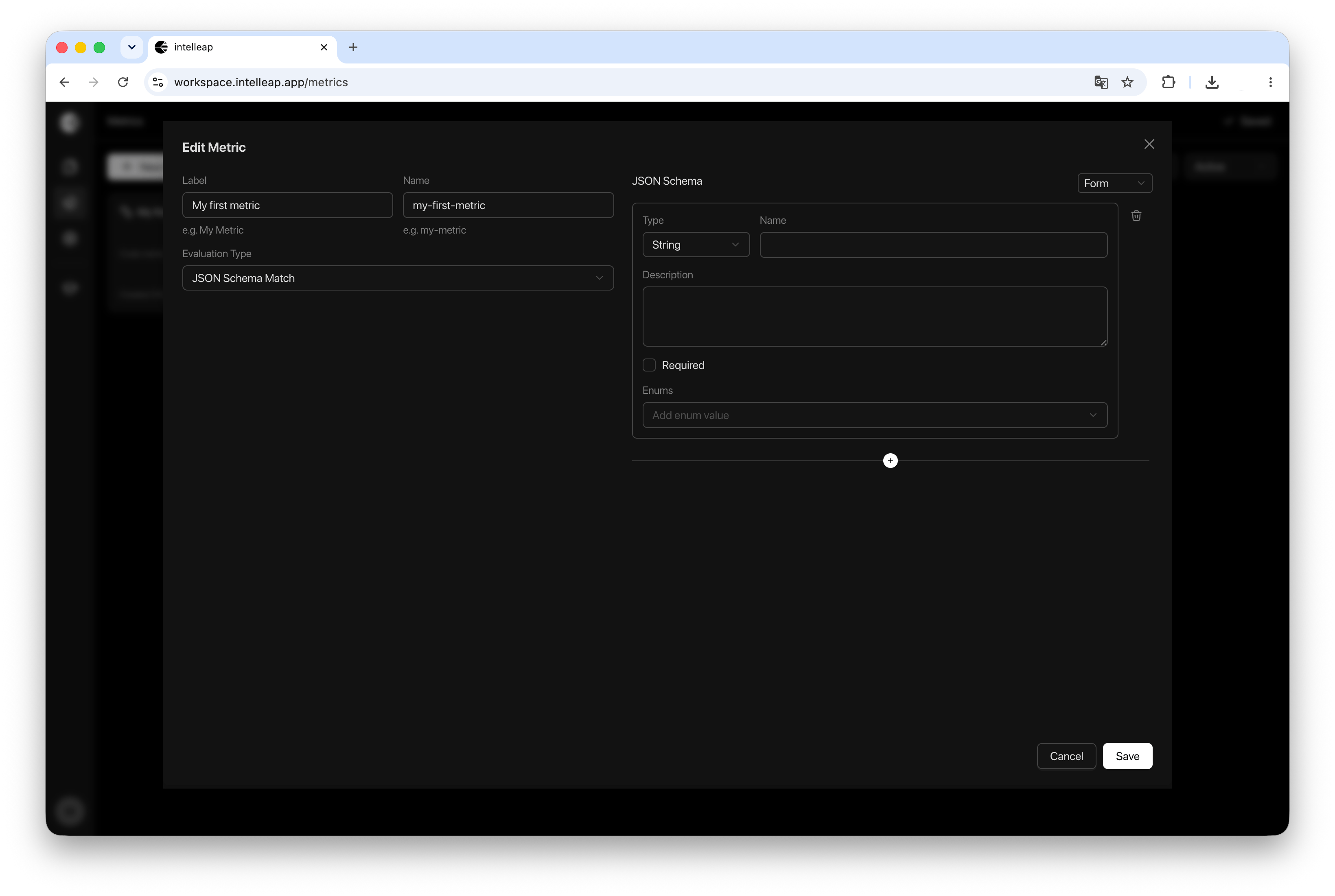
Form Mode
Form Mode provides a visual schema builder. Each schema field can be configured using the following properties:- Type
- Name
- Description
- Required
- Enums
- String
- Number
- Boolean
- Object
- Array
Nested Structures
Object and Array types support nested elements. This makes it possible to define complex data structures with multiple levels of hierarchy. For example:- An object can contain other objects.
- An array can contain objects.
- Objects inside arrays can contain their own nested fields.
Raw Mode
Raw Mode displays the schema as JSON Schema. This mode provides direct access to the underlying schema definition.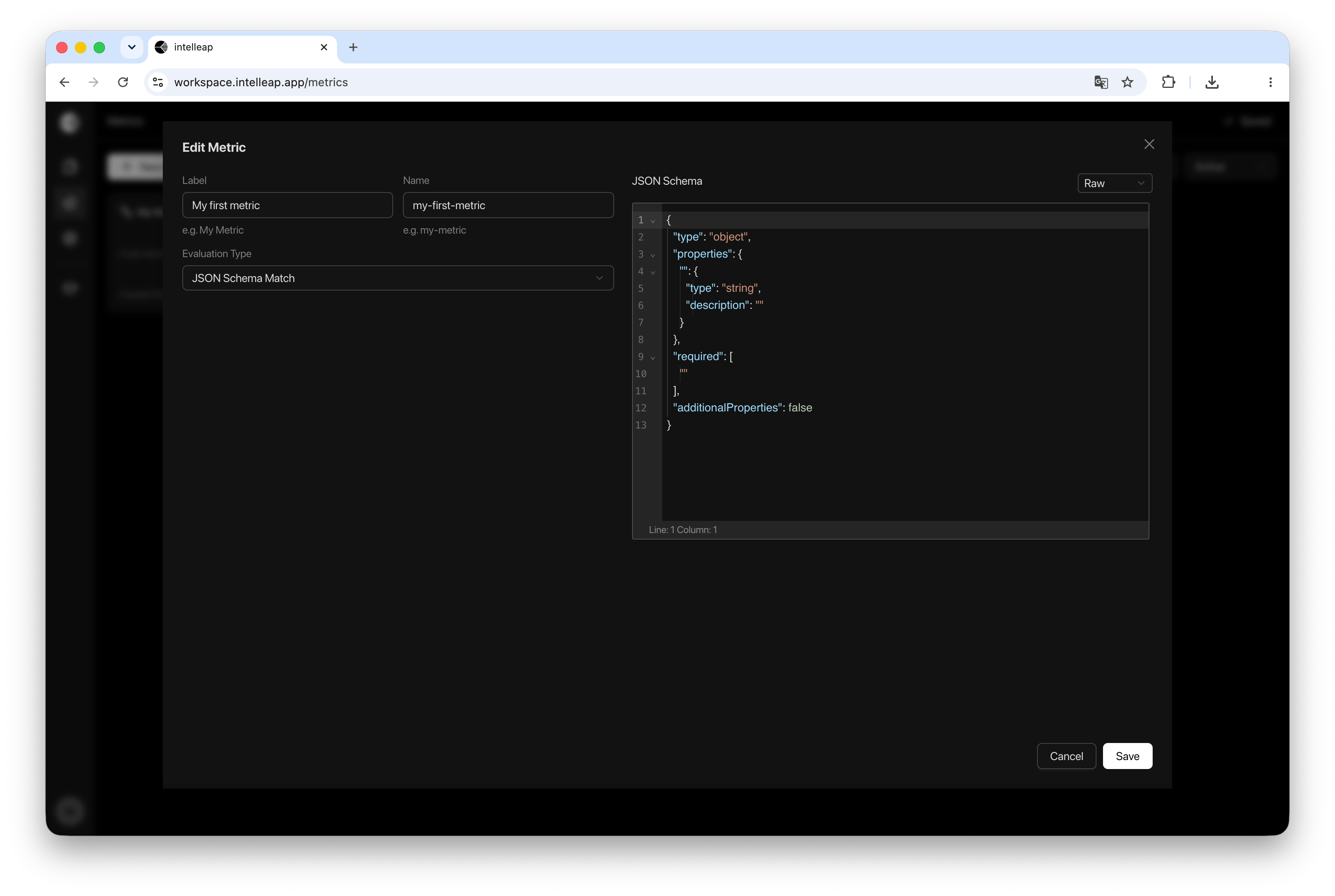
Synchronization Between Modes
Form Mode and Raw Mode operate on the same schema. Changes made in Form Mode are automatically reflected in Raw Mode as JSON Schema. Changes made in Raw Mode are also reflected in Form Mode. The editor provides full two-way synchronization between both representations. If the schema entered in Raw Mode is invalid, the changes are not applied to Form Mode. In that case, the editor preserves the last valid schema version and continues using it for visual editing. This allows users to switch safely between editing modes without risking schema corruption.Using JSON Schema Metrics
After saving, the metric becomes available in the Testing section. To attach a metric to a Test Suite, use:When to Use JSON Schema Metrics
JSON Schema Metrics are particularly useful when responses must follow a strict structure. Common use cases include:- Structured output validation
- Data extraction workflows
- Classification tasks
- JSON responses for APIs
- Forms and questionnaires
- Any workflow where output format consistency is important