

Connect a provider
Add a provider API key so Intelleap can run model executions.
Build a prompt
Create a prompt, configure variables, scenarios, variants, and model settings.
Publish a release
Capture the current prompt state for Testing and Evaluations.
Run and review
Execute tests, inspect outputs, and review evaluation results.
1
Add a Provider Key
Before using Intelleap, you must connect at least one supported model provider.Open Account → Workspace and click Add Secret.Provide:
- Label
- Secret Key
2
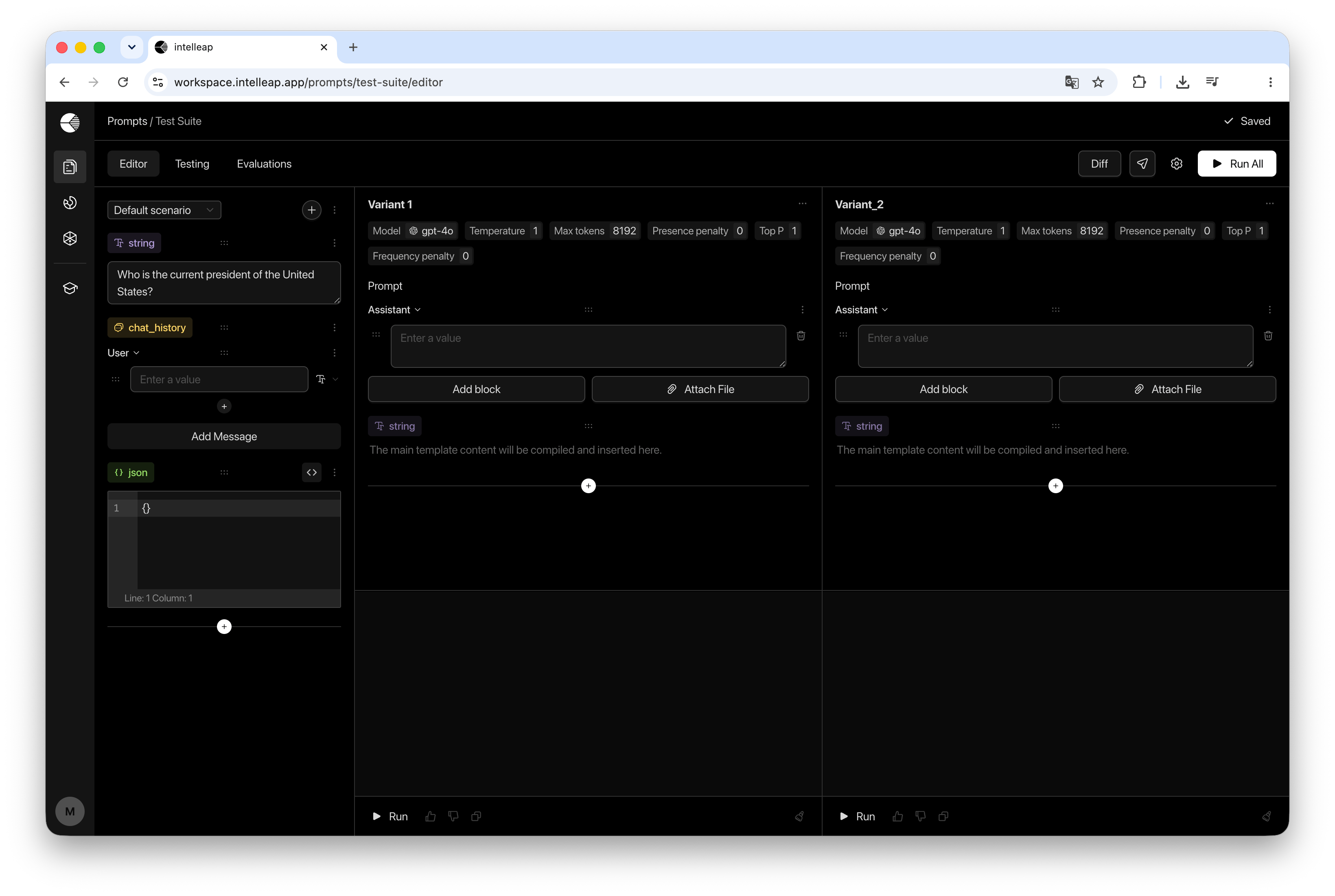
Create and Configure a Prompt
Open the Prompts page and click New Prompt.Enter:
- Label Name
- Description
- Create variables
- Configure scenarios
- Create one or more prompt variants
- Select model settings
-
Run prompt variants
3
Publish a Release
When your prompt configuration is ready, click Releases.Create a new release by providing:
- Label
- Name
- Description
After publishing the first release, the Testing and Evaluations tabs become available.
4
Create a Test Suite and Run Tests
Open the Testing tab.Select a release and create a Test Suite.Configure: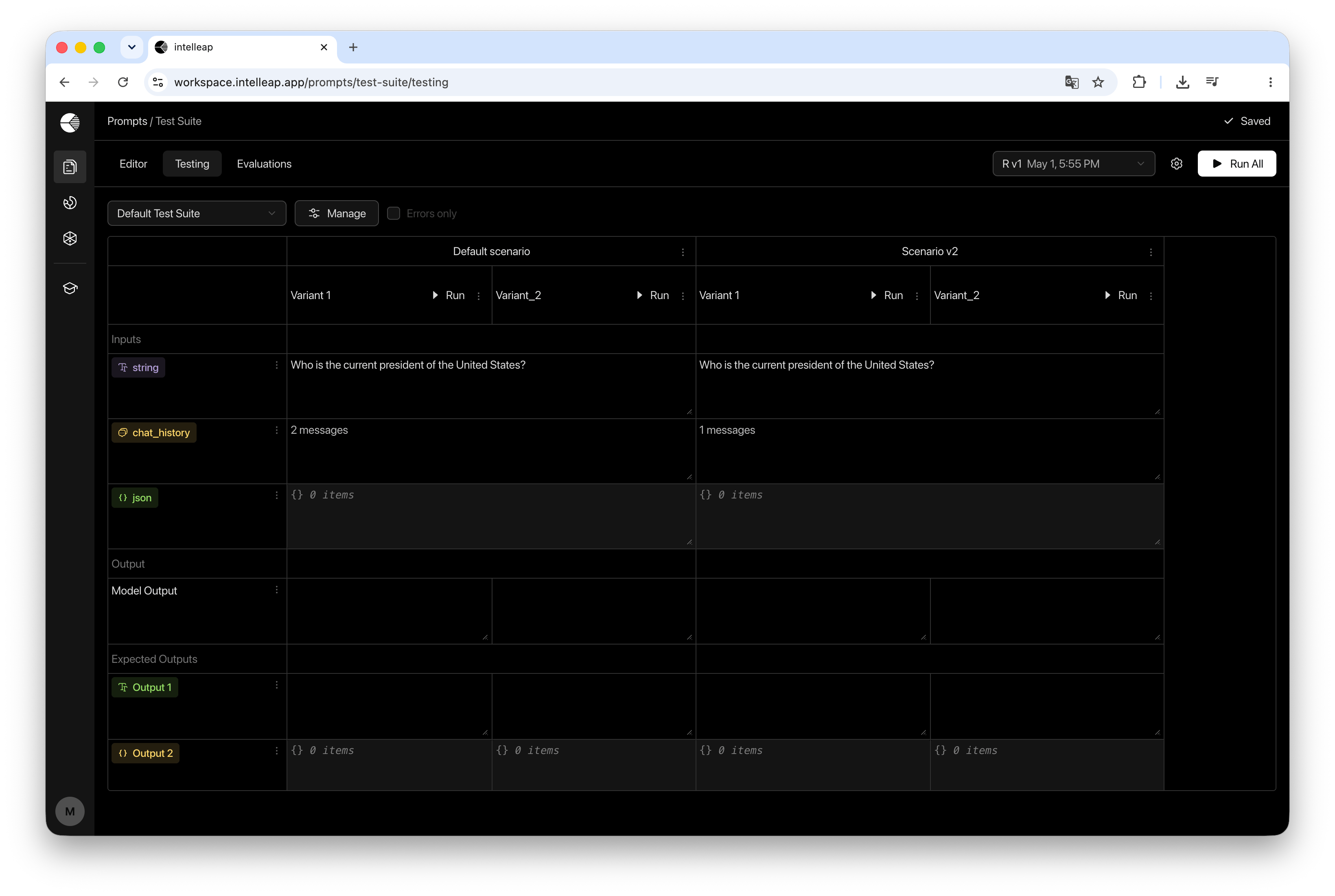
- Test data
- Expected Outputs
- Metrics
5
Review Results
All executions are automatically recorded in the Evaluations tab.For each execution, you can review: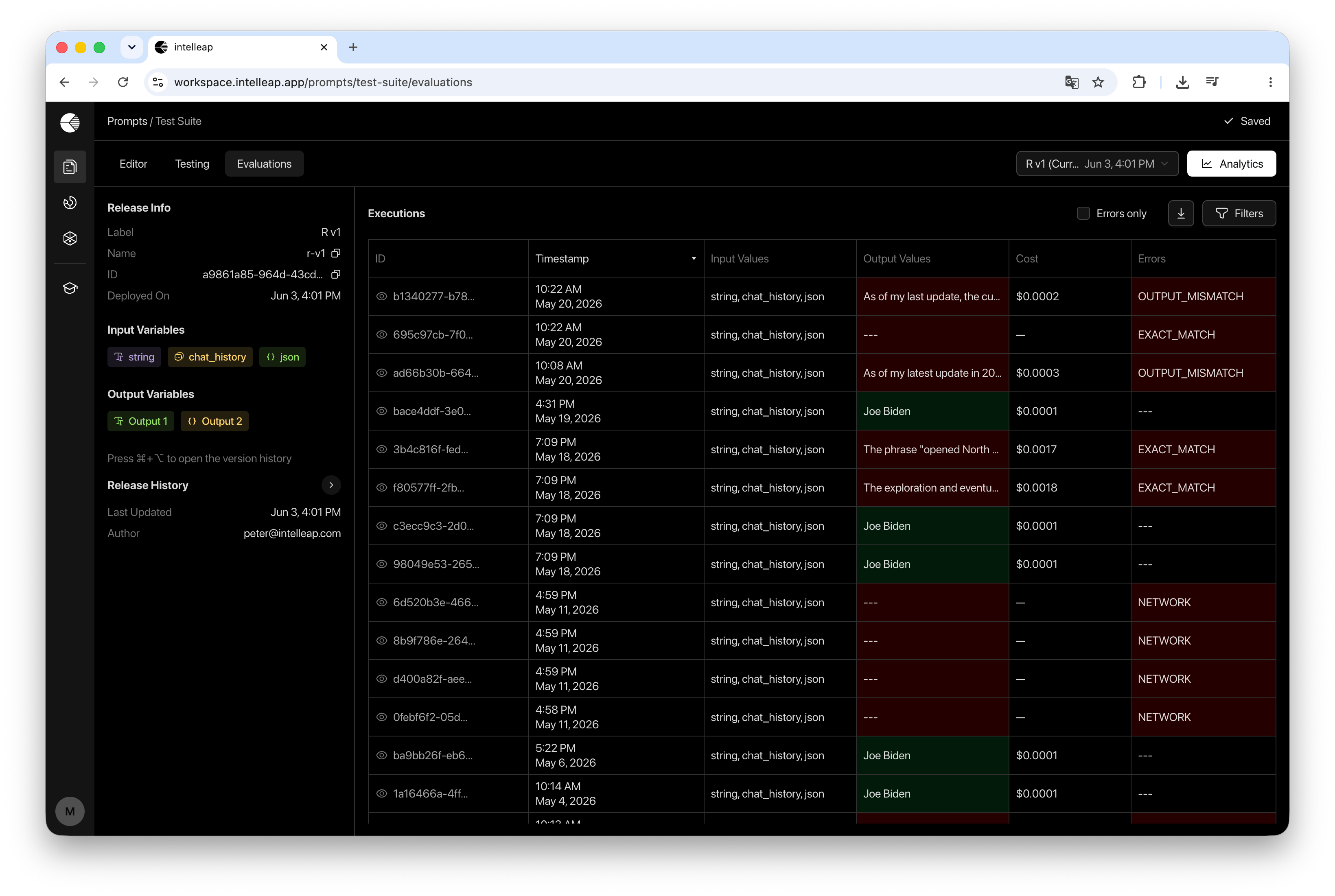
- Input values
- Output values
- Estimated cost
- Errors
- Request and response details