

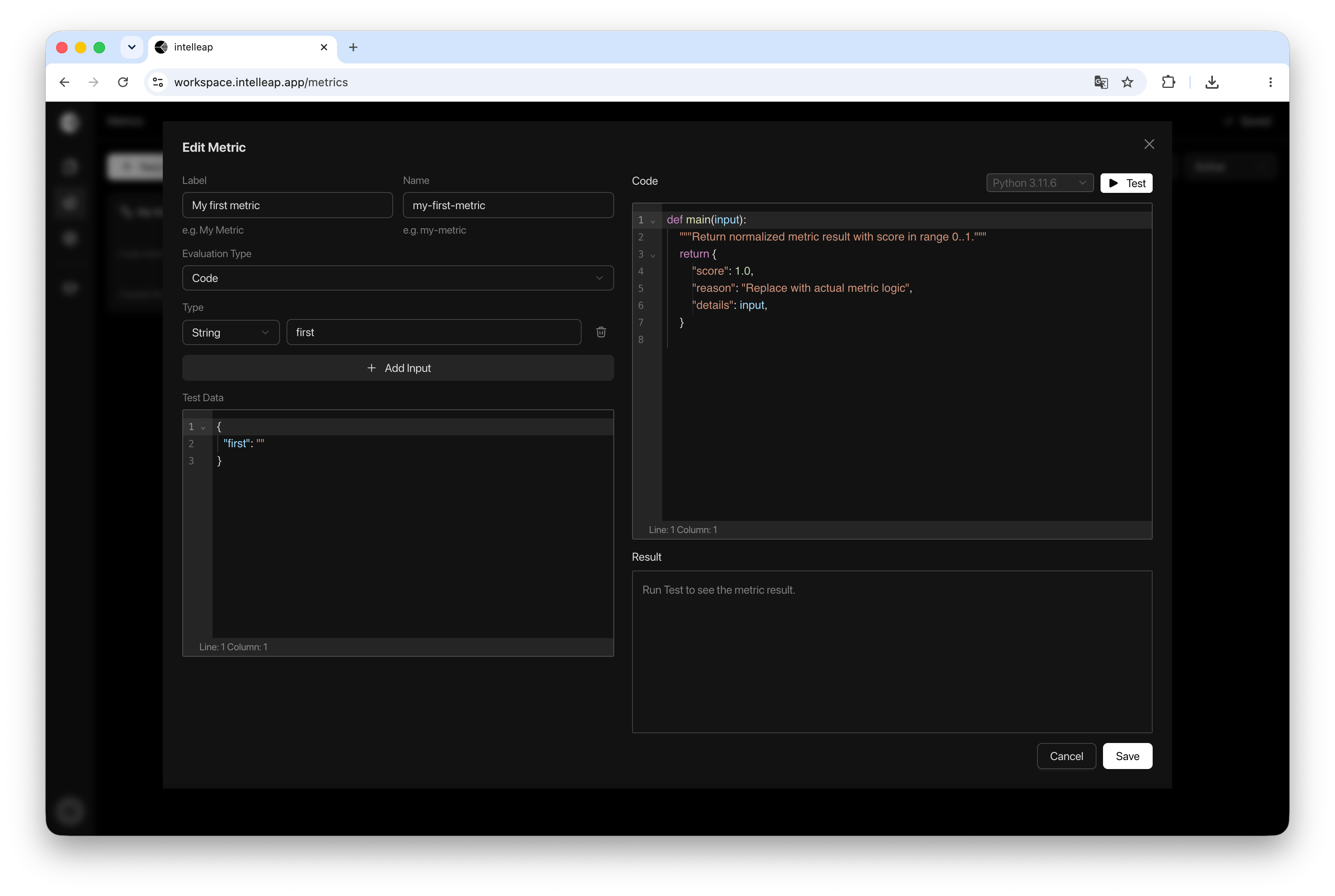
Creating a Code Metric
To create a new metric:1
Open Metrics
Open the Metrics section.
2
Create a metric
Click New Metric.
3
Select Code
Select Code in the Evaluation Type field.
Basic Configuration
Each metric includes the following settings:- Label
- Name
- Evaluation Type
Inputs
Code Metrics can receive custom input parameters. Each input consists of:- Data Type
- Input Name
Test Data
The Test Data section contains the sample data used for testing the metric. Test data is configured as JSON. The JSON structure typically matches the inputs defined in the Inputs section. Test Data allows metric behavior to be validated before the metric is used in Testing.Python Code
Evaluation logic is implemented using Python. Currently, the only supported runtime is:- Custom validation rules
- Output analysis
- Scoring systems
- Constraint checking
- Business-specific evaluation logic
Example Code Metric
The following example shows the default structure of a Code Metric:main() function.
Code Metrics currently run on Python 3.11.6 and must expose a
main(input) function.- score — metric score between 0 and 1
- reason — explanation of the result
- details — additional diagnostic information
Testing a Metric
To test a metric, click Test. The current version of the code is executed using the data provided in the Test Data section. Testing is performed directly inside the metric editor and does not require navigating to another page.Result
After a test run completes, the output is displayed in the Result section. Depending on the execution outcome, the result may contain:Evaluation result
A successful metric output.
Error message
Runtime or validation feedback from a failed test run.
Returned data
Diagnostic data returned by the metric code.