> ## Documentation Index
> Fetch the complete documentation index at: https://docs.intelleap.app/llms.txt
> Use this file to discover all available pages before exploring further.
# Editor Overview
The Editor is the primary workspace in Intelleap for creating, configuring, and running prompts.
Each prompt includes three connected workspaces:
* Editor
* Testing
* Evaluations
Work typically begins in the Editor, continues in Testing, and concludes with reviewing results in Evaluations.
 ## Editor Layout
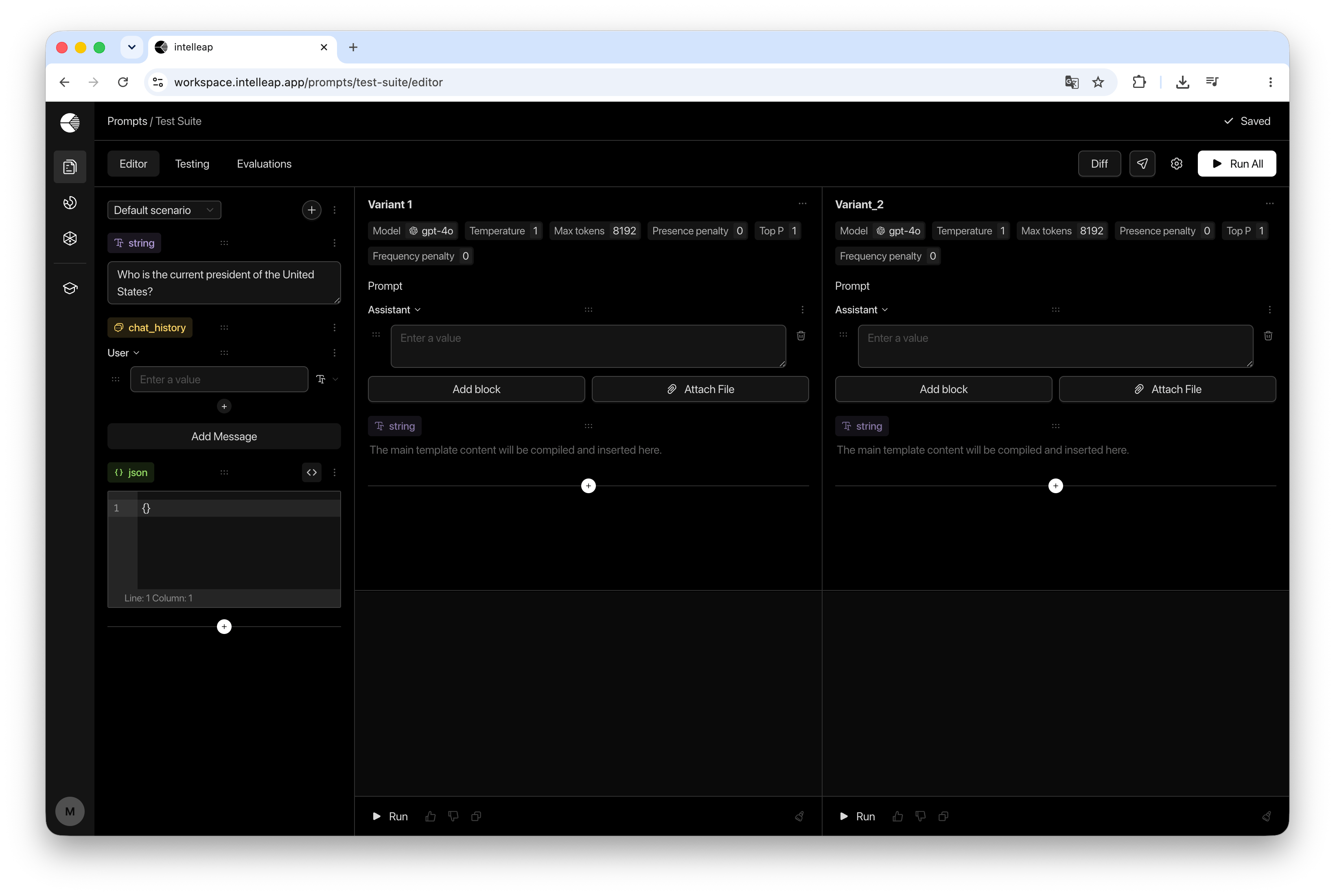
The Editor consists of two main areas:
Manage scenarios and variables associated with the current prompt.
Create, configure, run, and compare one or more prompt variants.
The sidebar contains scenarios and variables associated with the current prompt.
The main workspace contains one or more prompt variants.
## Scenarios
Scenarios store different sets of values for prompt variables.
Switching between scenarios changes the values assigned to variables while preserving the variable structure itself.
This makes it possible to test the same prompt variants against multiple input configurations.
New scenarios can be created from the scenario selector located at the top of the sidebar.
## Variables
Variables define the data used throughout prompt variants.
Intelleap supports the following variable types:
Plain text values used for inputs, instructions, parameters, and test data.
Multi-message conversation context with user, assistant, and system roles.
Structured data edited through the built-in JSON editor.
Variables can be reordered using drag-and-drop and reused across all prompt variants.
## Prompt Variants
Prompt variants allow different prompt configurations to be tested side by side.
Each variant contains:
* Model settings
* Shared prompt body
* Context Before blocks
* Context After blocks
* Output area
Variants can be created, cloned, updated, or removed independently.
Users without full access can create up to three variants per prompt.
## Running Variants
Prompt variants can be executed individually or together.
Execute one variant and display the result inside that variant.
Execute all visible variants simultaneously from the Editor header.
Execution results are displayed directly within each variant.
## Comparing Variants
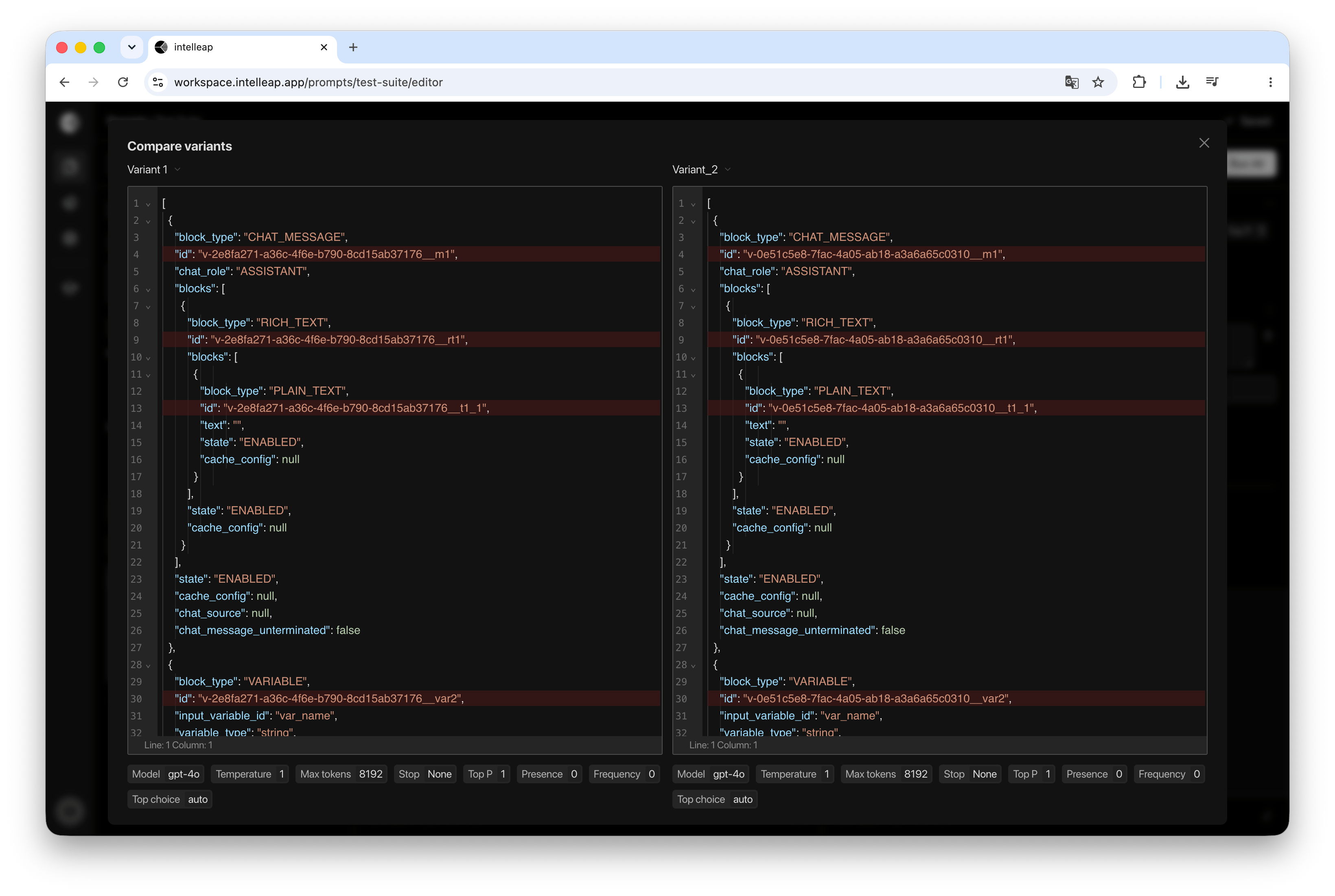
The **Differences** action allows users to compare the structure of prompt variants.
When multiple variants are available, any two variants can be selected and compared side by side.
Differences are displayed in a dedicated comparison view.
The **Differences** action becomes available only when more than one variant exists.
## Editor Layout
The Editor consists of two main areas:
Manage scenarios and variables associated with the current prompt.
Create, configure, run, and compare one or more prompt variants.
The sidebar contains scenarios and variables associated with the current prompt.
The main workspace contains one or more prompt variants.
## Scenarios
Scenarios store different sets of values for prompt variables.
Switching between scenarios changes the values assigned to variables while preserving the variable structure itself.
This makes it possible to test the same prompt variants against multiple input configurations.
New scenarios can be created from the scenario selector located at the top of the sidebar.
## Variables
Variables define the data used throughout prompt variants.
Intelleap supports the following variable types:
Plain text values used for inputs, instructions, parameters, and test data.
Multi-message conversation context with user, assistant, and system roles.
Structured data edited through the built-in JSON editor.
Variables can be reordered using drag-and-drop and reused across all prompt variants.
## Prompt Variants
Prompt variants allow different prompt configurations to be tested side by side.
Each variant contains:
* Model settings
* Shared prompt body
* Context Before blocks
* Context After blocks
* Output area
Variants can be created, cloned, updated, or removed independently.
Users without full access can create up to three variants per prompt.
## Running Variants
Prompt variants can be executed individually or together.
Execute one variant and display the result inside that variant.
Execute all visible variants simultaneously from the Editor header.
Execution results are displayed directly within each variant.
## Comparing Variants
The **Differences** action allows users to compare the structure of prompt variants.
When multiple variants are available, any two variants can be selected and compared side by side.
Differences are displayed in a dedicated comparison view.
The **Differences** action becomes available only when more than one variant exists.
 ## Releases
The **Releases** action creates and manages prompt releases.
A release captures the current state of a prompt and makes it available in Testing and Evaluations.
The Releases dialog provides two options:
* New Release
* Update Release
Creating the first release unlocks access to both the Testing and Evaluations tabs.
## Usage Limits
Users without full access are limited to:
* 3 scenarios per prompt
* 10 variables per prompt
* 3 prompt variants per prompt
These limits apply to users without full access. Full-access workspaces can use higher limits.
## Releases
The **Releases** action creates and manages prompt releases.
A release captures the current state of a prompt and makes it available in Testing and Evaluations.
The Releases dialog provides two options:
* New Release
* Update Release
Creating the first release unlocks access to both the Testing and Evaluations tabs.
## Usage Limits
Users without full access are limited to:
* 3 scenarios per prompt
* 10 variables per prompt
* 3 prompt variants per prompt
These limits apply to users without full access. Full-access workspaces can use higher limits.